Can Ordinary People Deploy DeepSeek-R1 Locally Too?
deepseek has taken the internet by storm, but lately the servers are always busy. Could I deploy one locally? The answer is yes. So can ordinary people do it too? Also yes.
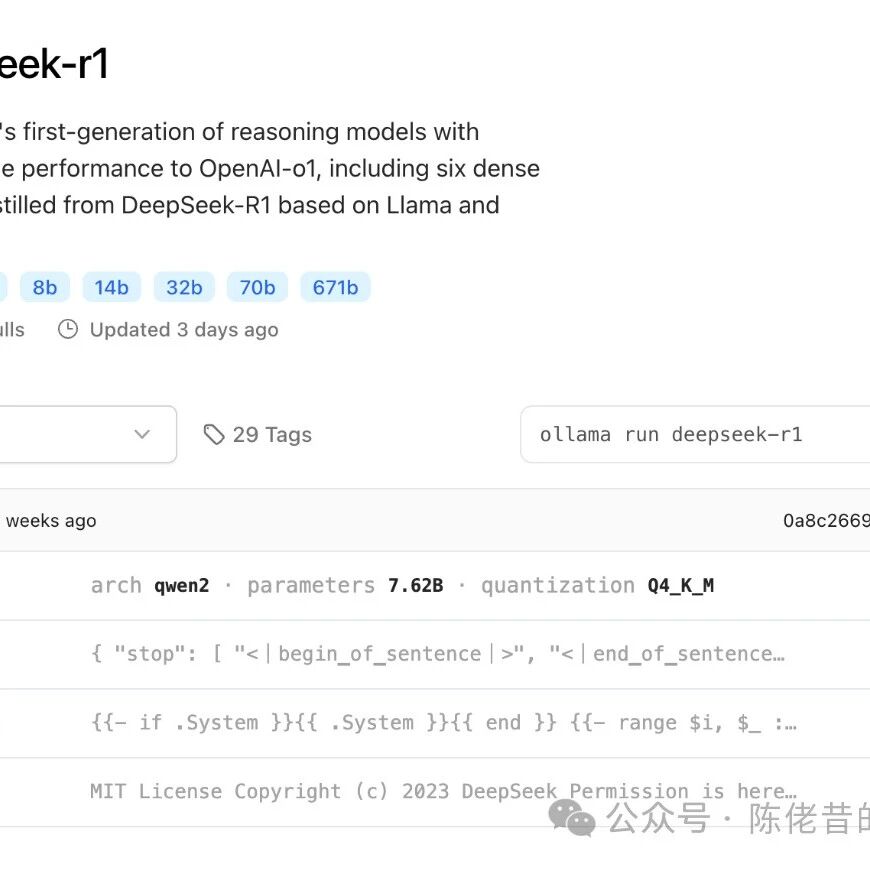
deepseek has taken the internet by storm, but lately the servers are always busy. Can I deploy a local deepseek? The answer is yes.
And can ordinary people do it too? Also yes. (Jump straight to the summary at the end, then come back for the details.)
### 1. Install Ollama
First you need to install Ollama — just go to Ollama.com and download the installer.
Once it's installed, the API is already there.
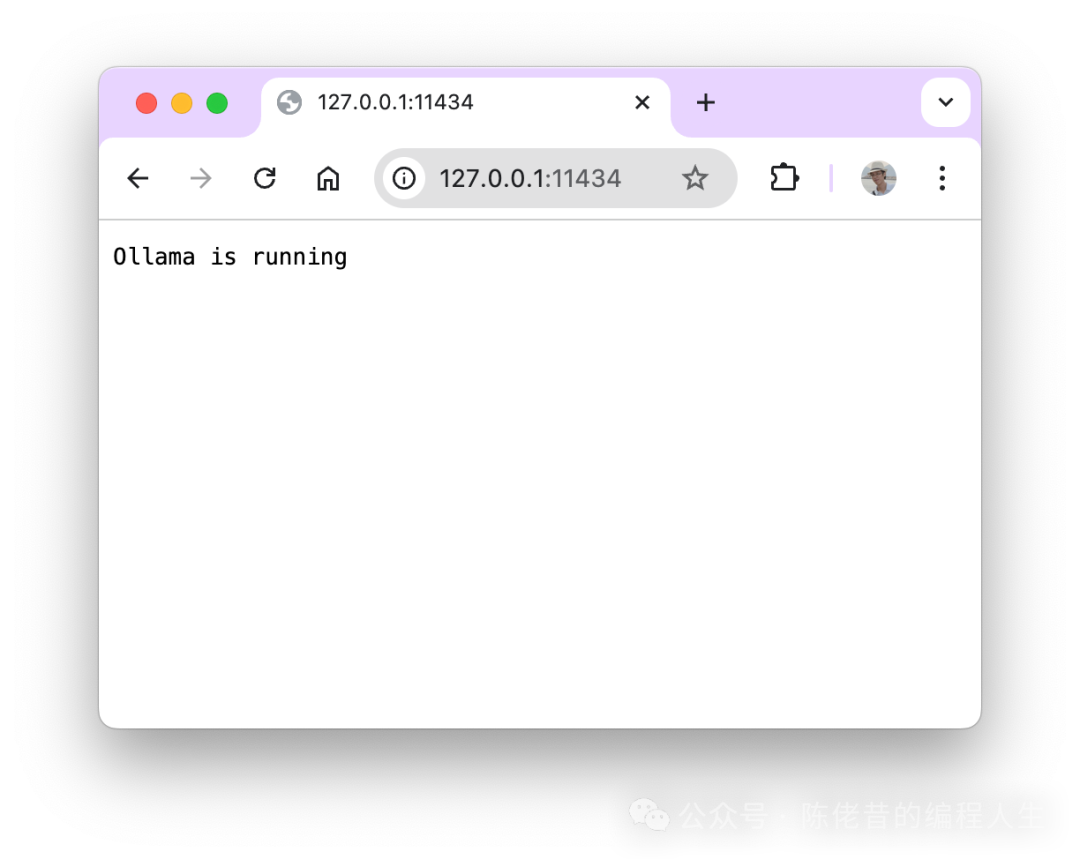
Visit 127.0.0.1:11434, and if "Ollama is running" shows up, your local Ollama has been deployed successfully.
### 2. Install the deepseek model
Now you can pull the models from the command line.
ollama run deepseek-r1
This command fetches the default-sized deepseek-r1 model from Ollama's model library and runs it. If the model isn't in your local library yet, it will be pulled from Ollama's official site.
The default here is the 7b distilled model. If you want to pick a size that suits your needs, refer to the specific code for each model size listed on the site.
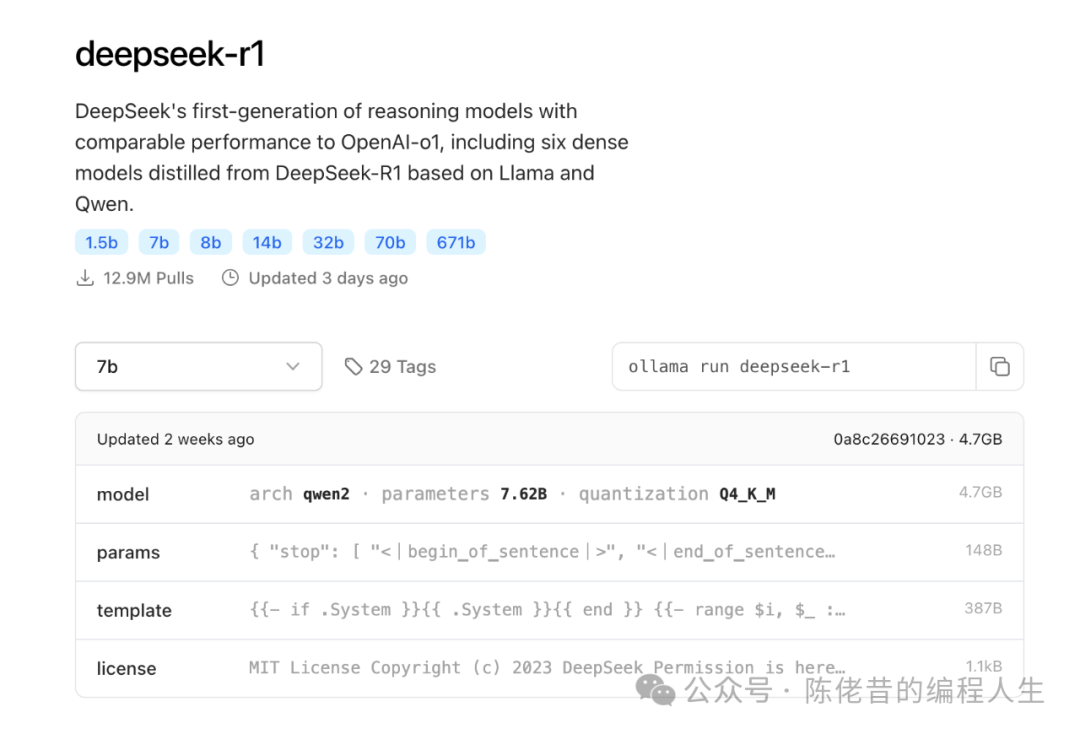
Reference: https://ollama.com/library/deepseek-r1.
The larger the parameter count, the more you have to download. From my own experiments, the last 5%-10% of the download can be extremely slow. Be patient — though it seems to support resuming downloads, so if the connection drops, just run it again.
As for hardware requirements, a rough rule of thumb: for a model with (n)b parameters, you ideally want (2 * n)G of VRAM — for Mac users, just look at the RAM. The Mac I'm using now has 36G of RAM, and running 32b is fine.
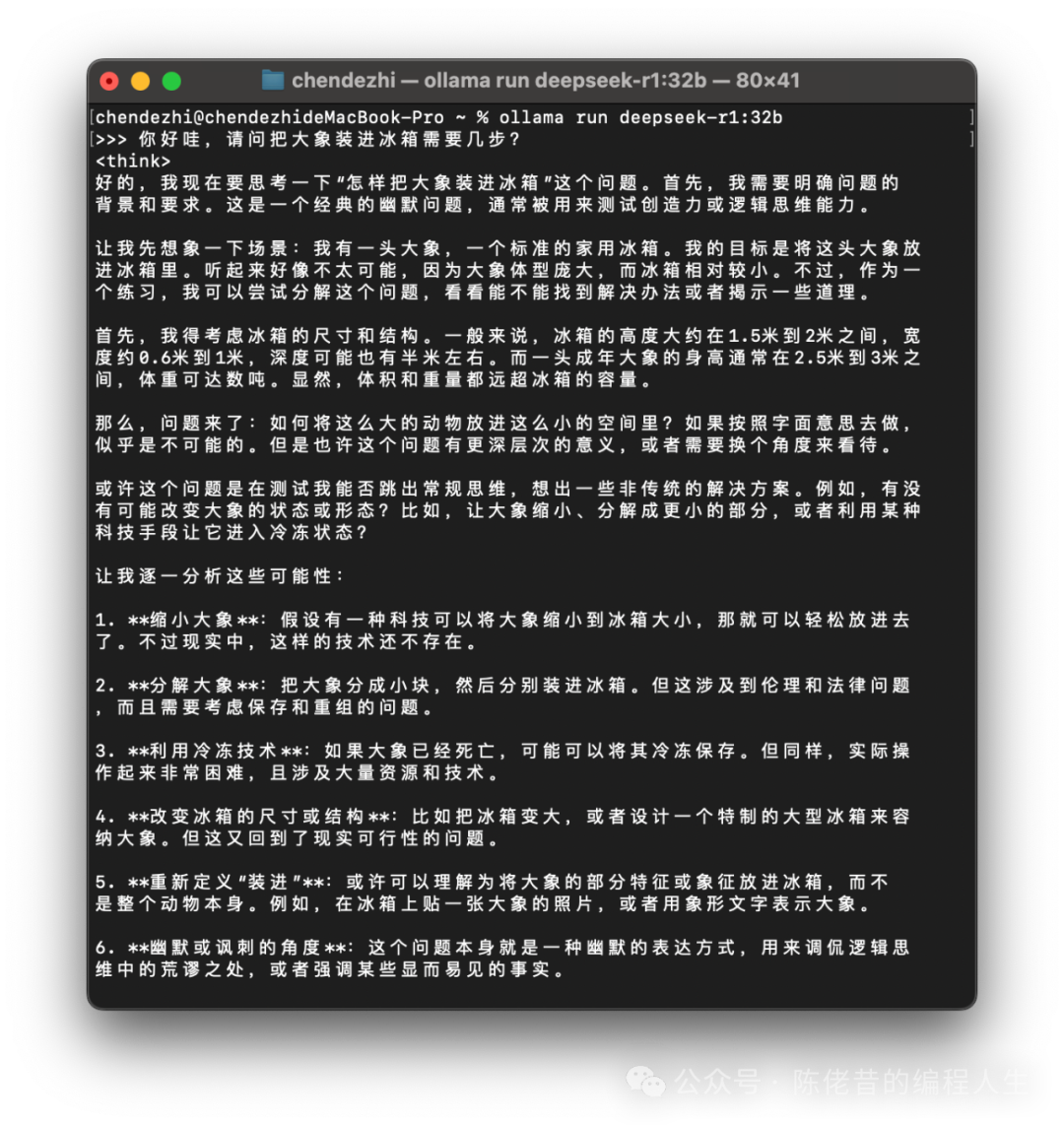
Once installed, you can type questions straight into the command line and chat with deepseek.
3. Install and deploy a UI
If you're a programmer, you might think the command line is honestly good enough. But the command-line display still isn't very friendly, so here are five ways to install a UI. (Just pick the one that suits you best.)
For ordinary users or everyday use, I recommend going straight to method five
1. Build your own UI. Difficulty 🌟🌟🌟🌟🌟
Since you already know the ollama API, you can absolutely build your own UI.
The official REST API is available — see the official GitHub docs: Ollama REST API.
But this step is too much hassle. Even for a veteran programmer, with an AI coding assistant at their side, I believe most people still wouldn't choose this route.
### 2. Deploy a UI locally. Difficulty 🌟🌟🌟🌟
Then pick a mature UI and set it up yourself. Open WebUI, whose UI is modeled on ChatGPT, is most people's first choice.
If you have a Python environment, you can just install Open WebUI and start the service.
# Install
pip install open-webui
# Start the service
open-webui serve
### 3. Deploy the UI with docker. Difficulty 🌟🌟🌟
Local environments are too messy, and plenty of people probably don't have Python locally. But maybe you happen to have run docker locally before.
Then you can simplify even further and just use the existing docker image.
docker run -d -p 3000:8080 --add-host=host.docker.internal:host-gateway -v open-webui:/app/backend/data --name open-webui --restart always ghcr.io/open-webui/open-webui:main
Reference:
https://github.com/open-webui/open-webui?tab=readme-ov-file#quick-start-with-docker-
This step lowers the difficulty a lot, but it will probably scare off quite a few people without software development experience — after all, docker isn't very friendly to ordinary people.
### 4. Install a browser extension. Difficulty 🌟🌟
If you don't want to deploy anything locally at all, you can use a browser extension to hit the API directly, such as the Google Chrome extension Page-Assist.
Reference:
But for well-known reasons, the Chrome Web Store can't be used in China. If you don't have a VPN, you're not a Windows user, and you don't want to install an Edge browser just for this, then I'd still recommend the last method.
### 5. Install an app. Difficulty 🌟
There are mature apps now — just install one. For example, anything LLM. Download and install it from the anything LLM site:
https://anythingllm.com/desktop.
Once installed, select Ollama in the model interface.
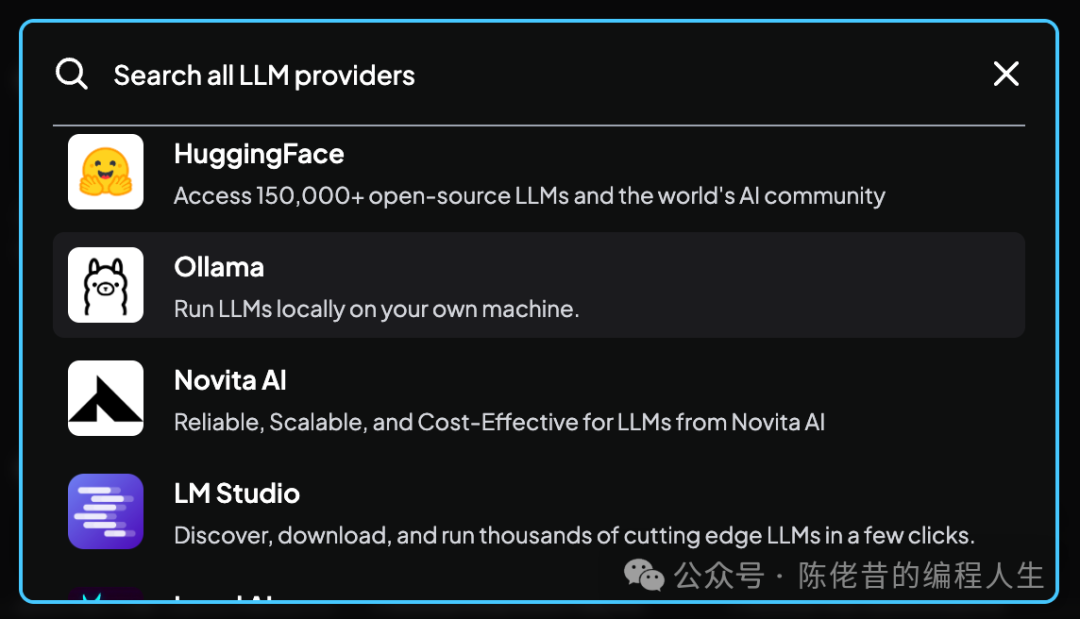
It's really that simple!
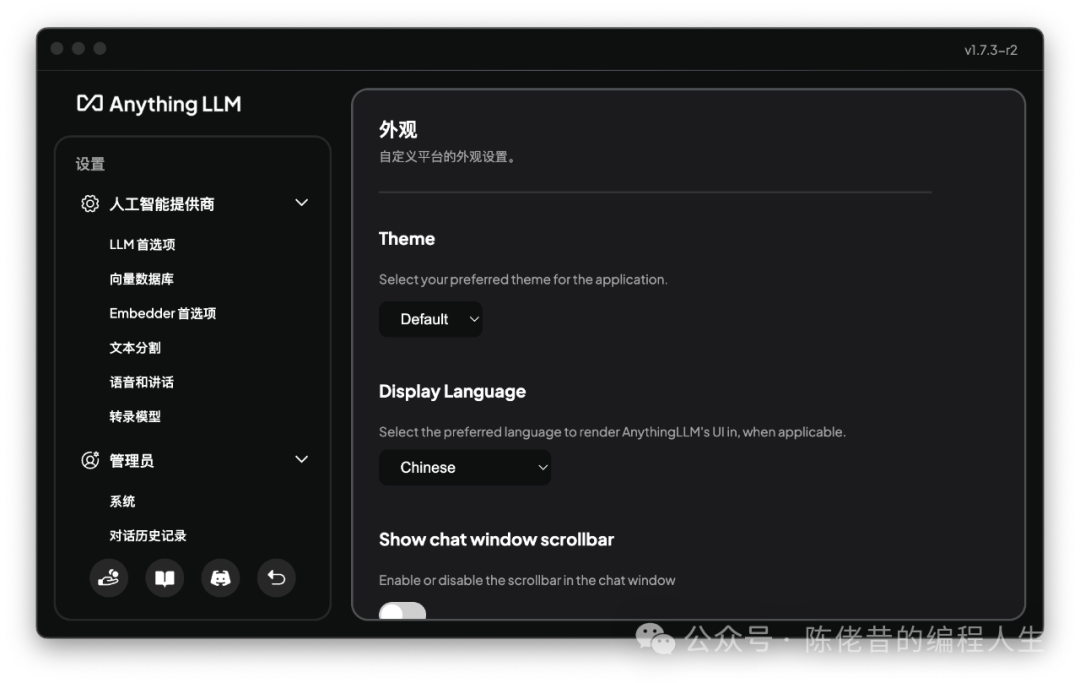
And it's no less fun than WebUI — the configuration is complete:
Summary:
- Ordinary users: a machine with a GPU that has 8G of VRAM, download the two apps Ollama + Anything LLM, and run the following command:
ollma run deepseek-r1
- Programmers choose as needed, in order of difficulty:
Build your own UI > Deploy Open Web UI locally > Deploy Open Web UI with docker > Install the browser extension Page Assist > Install an app: Anything LLM