Type4Me: A Fully Local Voice Input Tool That's Free and Private
Writing drafts, taking notes, typing code... speaking is much faster than typing. Now there's a completely free local tool that turns your speech into text, with all your data stored on your own computer. A must-have productivity tool for Mac users.
I doubt even Luo Yonghao saw it coming: in 2026, more and more people are using voice input.

It's not just foreign programmers using it for "vibe coding" — big names like Li Yizhou and Fu Sheng also use voice input when demoing ClaudCode and the Lobster.
Typing looks easy, but few people can do it both fast and comfortably. When writing a long piece or taking notes, your fingers get tired after typing for a while. Voice input is different: say what's on your mind and it becomes text, far more efficient.
And the technology has matured. Well-known tools like Typeless, once they added LLM polishing, could produce long stretches of excellent text.
But here's the problem — good voice input basically costs money. I heard someone spent over a thousand dollars a month just to use Typeless. That's really burning cash.
So is there a free option? Yes.
What is Type4Me?
It's a native macOS voice input tool, and its best feature is that everything runs locally.
No network needed, no API key, no account registration. Open it and use it.
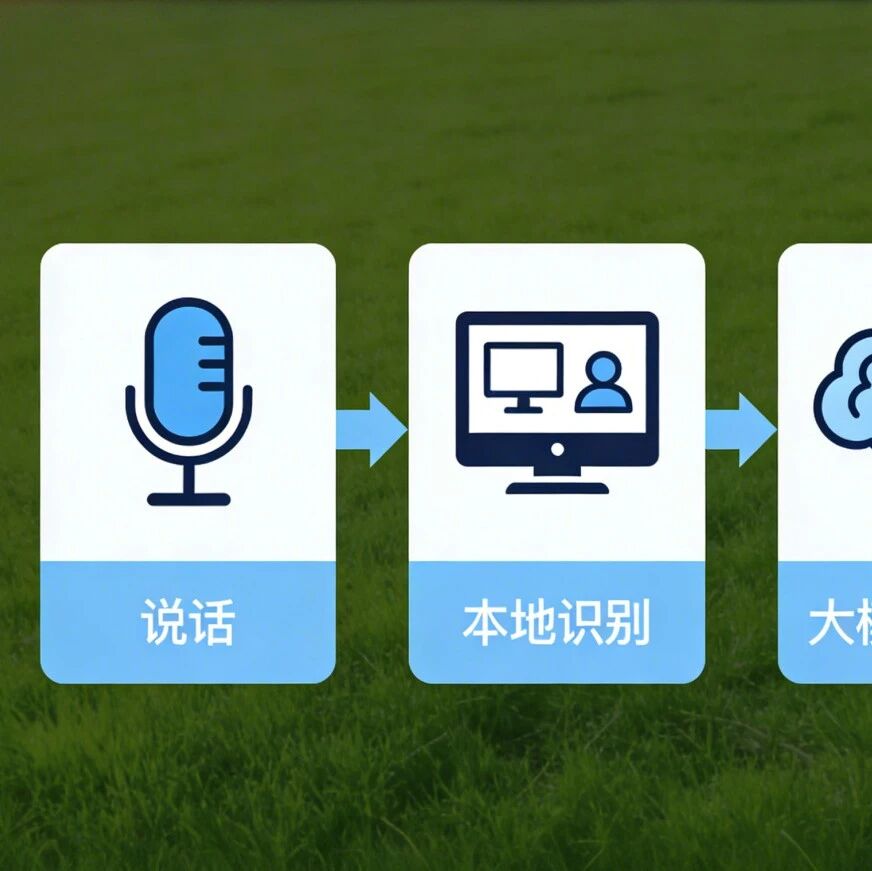
The flow is simple: speak → local recognition → LLM polishing → the text appears right at the cursor. Basically you talk to your computer and the text comes out, with no extra steps in between.
Beyond having all of Typeless's strengths, it also solves privacy — your voice and text data stay on your own computer and are never uploaded to any server. And it saves money: no monthly fees, zero cost forever.
For ordinary users, "local deployment" used to sound fancy, but now it really is getting simpler and simpler.
Download and installation
System requirements: macOS 14+
Open-source project on GitHub:
https://github.com/joewongjc/type4me
Download link:
https://github.com/joewongjc/type4me/releases/tag/v1.3.0
Installation steps:
- After downloading, double-click to open it, then drag the Type4Me icon into "Applications" to finish installing.
- When it opens, you'll get a "cannot verify" warning (an individual developer, no notarization). Click "Done".
- Go to "System Settings" → "Privacy & Security" → "Security" and click "Open Anyway".
- Enter your password; when it says accessibility is required, choose "Open System Settings".
- Turn on "Accessibility", enter your password again, and you're set.
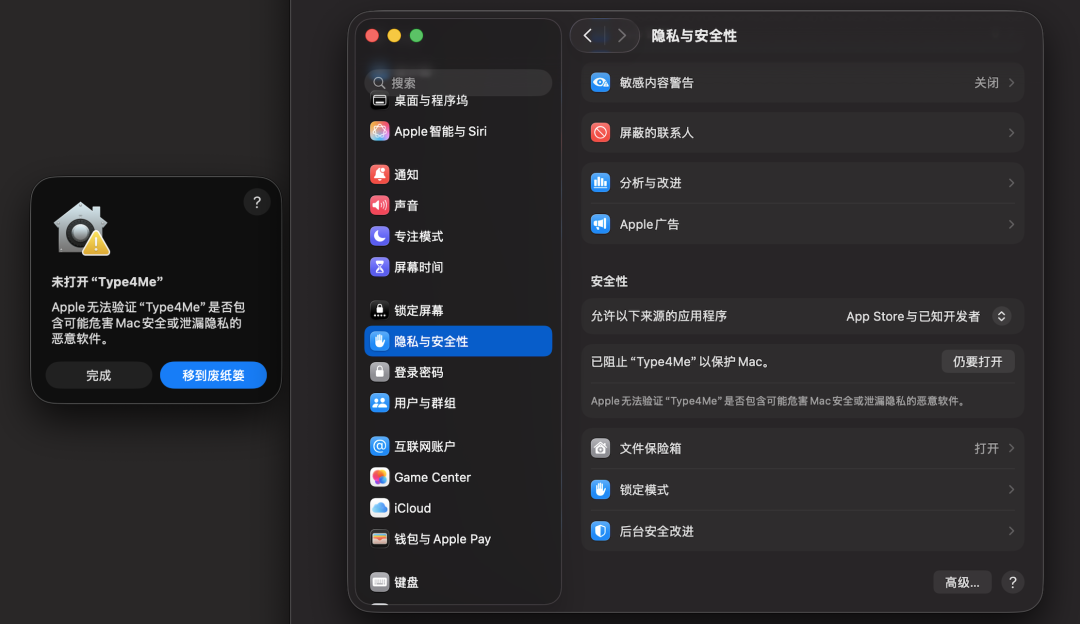
A small suggestion for the developer: it would be nice to get a developer certificate, which would make installation easier for users.
Usage
After launching, a microphone icon appears in the Mac menu bar. Click "Preferences" → "General" to configure:
- Authorize the microphone; if you didn't authorize "Accessibility" earlier, you can set that here too.
- For the speech recognition engine, choose "Local recognition (Paraformer)". The recognition model doesn't take up much space, so I recommend downloading the top-tier "Chinese-English bilingual" model directly (see the differences in the hands-on test below).
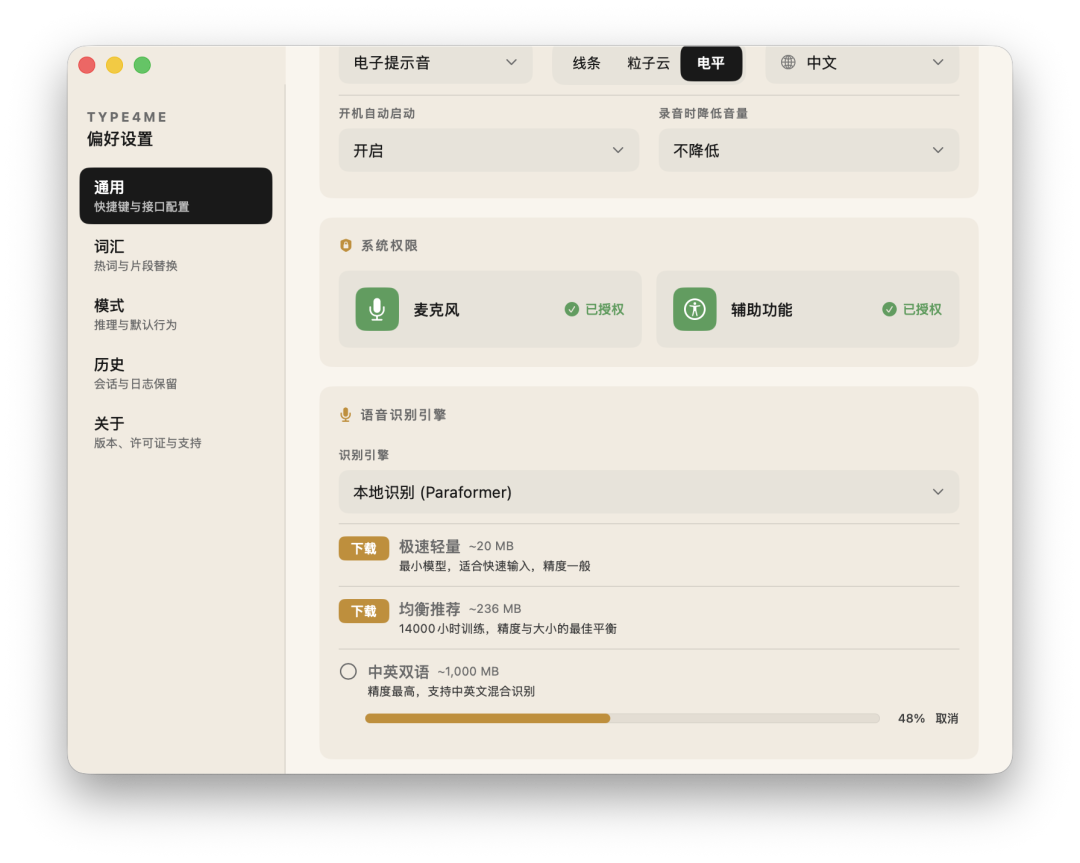
Now you can use it: press the "right Control key" on the keyboard to start talking, then press the same key again when you're done.
That's it.
On MacBooks without a right-side Control key, you can change the shortcut in "Processing modes".
Processing modes
Click "Modes" in the left menu to get to the processing mode settings.
Five modes are built in, and custom modes are supported too:
| Mode | Description | Use case |
|---|---|---|
| Fast mode | Recognizes text in real time and inputs it as soon as recognition finishes, zero latency | Direct output |
| Voice polish | Dual-channel recognition: the real-time display experience plus the accuracy of recorded recognition | Generating drafts |
| Prompt optimization | Say a simple raw prompt and it optimizes it, then pastes it directly | Talking to AI tools |
| English translation | Speak Chinese, output an English translation | Translation |
| Command mode | Voice as a command, combined with the selected text and clipboard content, for the LLM to act on | Revising drafts |
| Custom | Write your own prompt and use the LLM for any post-processing | Custom scenarios |
Apart from fast mode, all the other features need an LLM loaded.
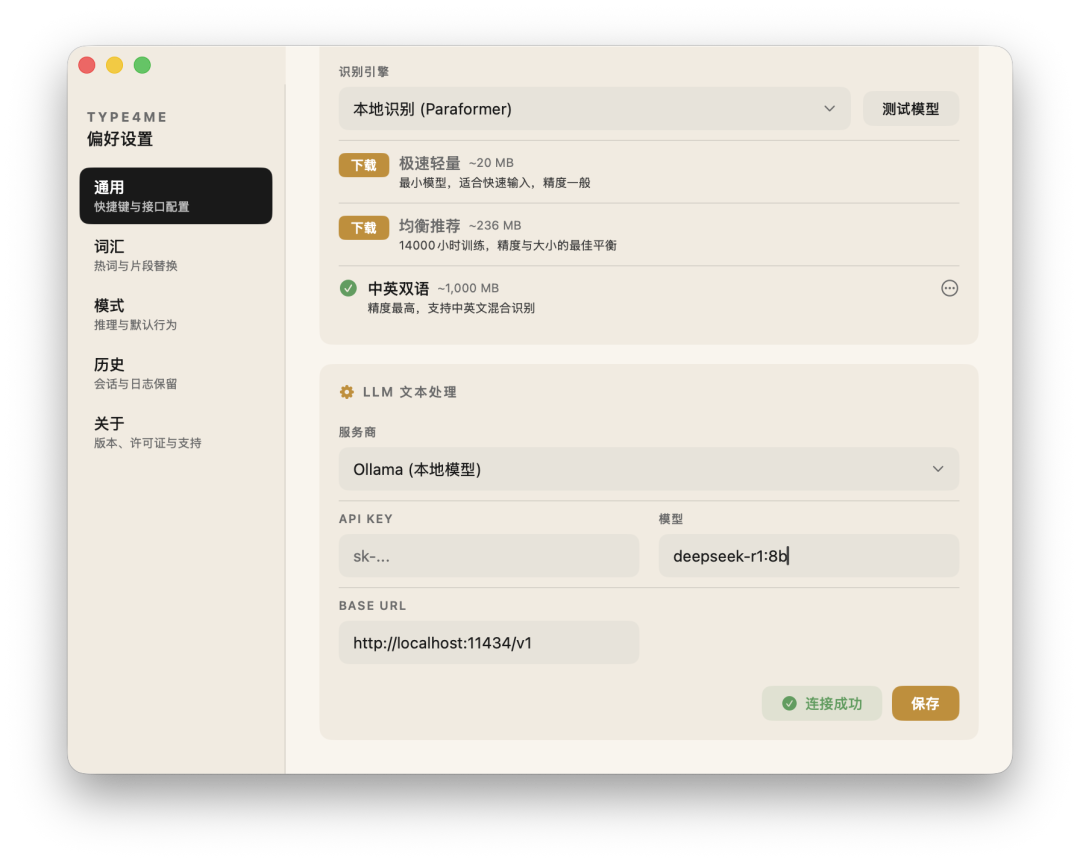
- Back in the "General" settings, under "LLM text processing" you can choose an online service or Ollama (local models).
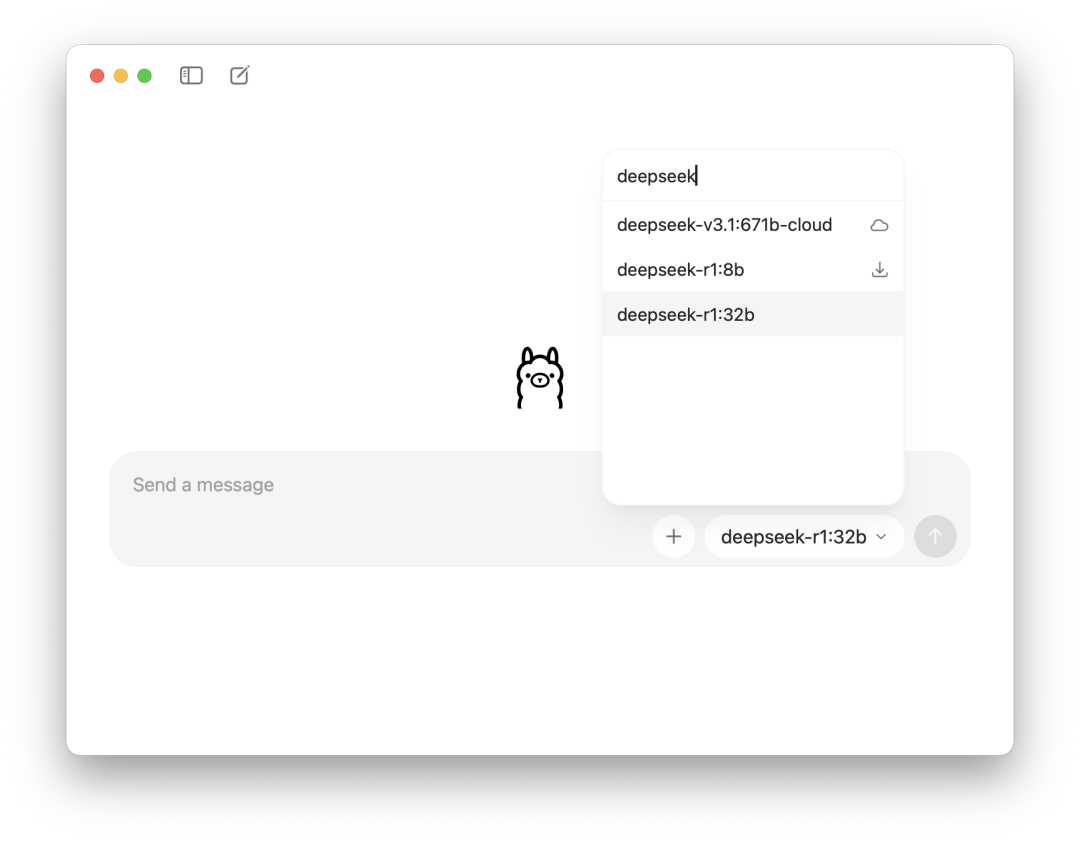
- If you choose a local model and don't have one installed, download and install it from https://ollama.com/download.
- After installing, open the interface and search for and install a model you like. In my tests, 8b models all performed well. Note: choose models with a download arrow. Cloud models are models Ollama offers in the cloud and are billed separately.
-
Enter the name of the model you just downloaded; leave the other options at their defaults.
-
Once the configuration is filled in, test the connection; when it passes, click "Save" and you're good to go.
Hands-on test
I used local recognition with the balanced profile / Chinese-English bilingual, tested with the cloud model MiniMax M2.7 and local Deepseek.
The results:
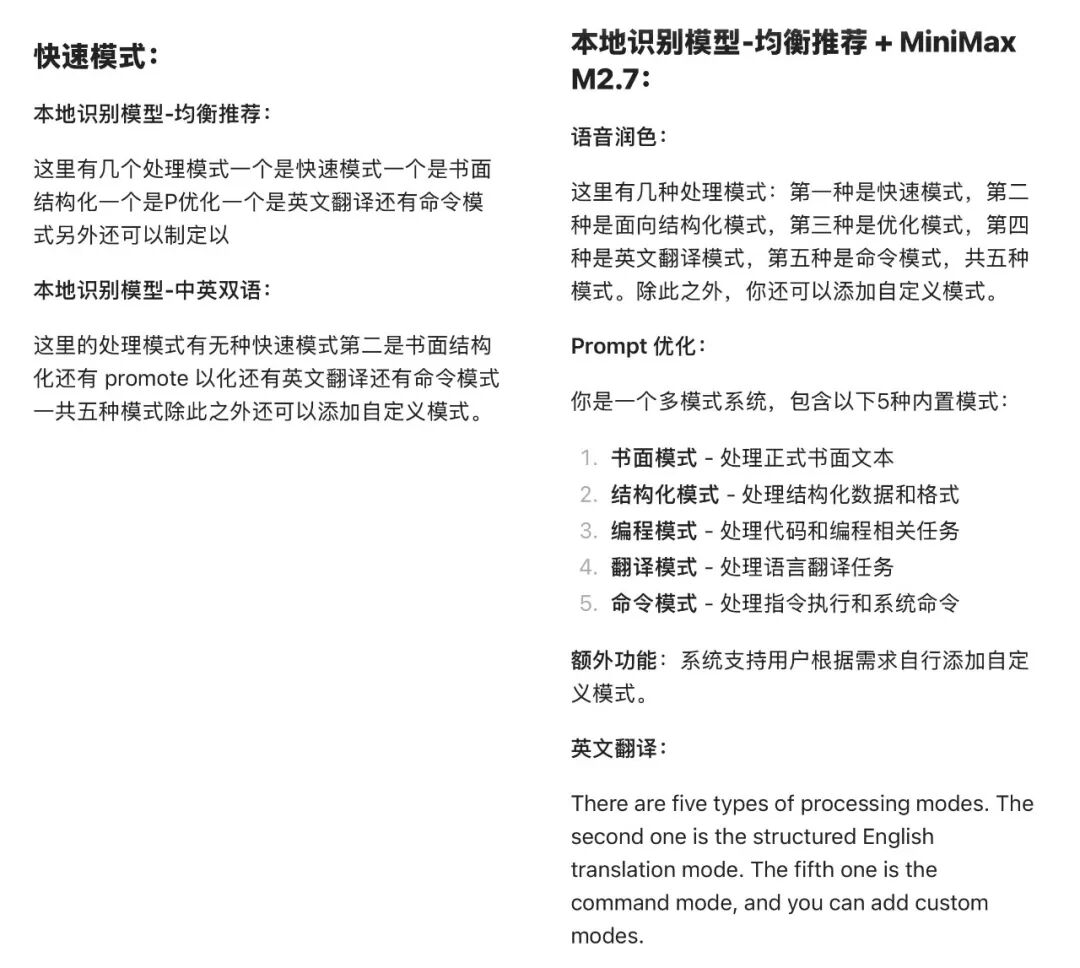
Local speech recognition model:
Overall, filler words in speech such as "um", "ah", "uh" get removed, but the obvious problem is the missing punctuation.
- Balanced (recommended): more typos, occasional missing words or sentences, poor English recognition.
- Chinese-English bilingual: possibly because of my accent, there are still typos and wrong English words, but no missing words or sentences; overall quality is high.
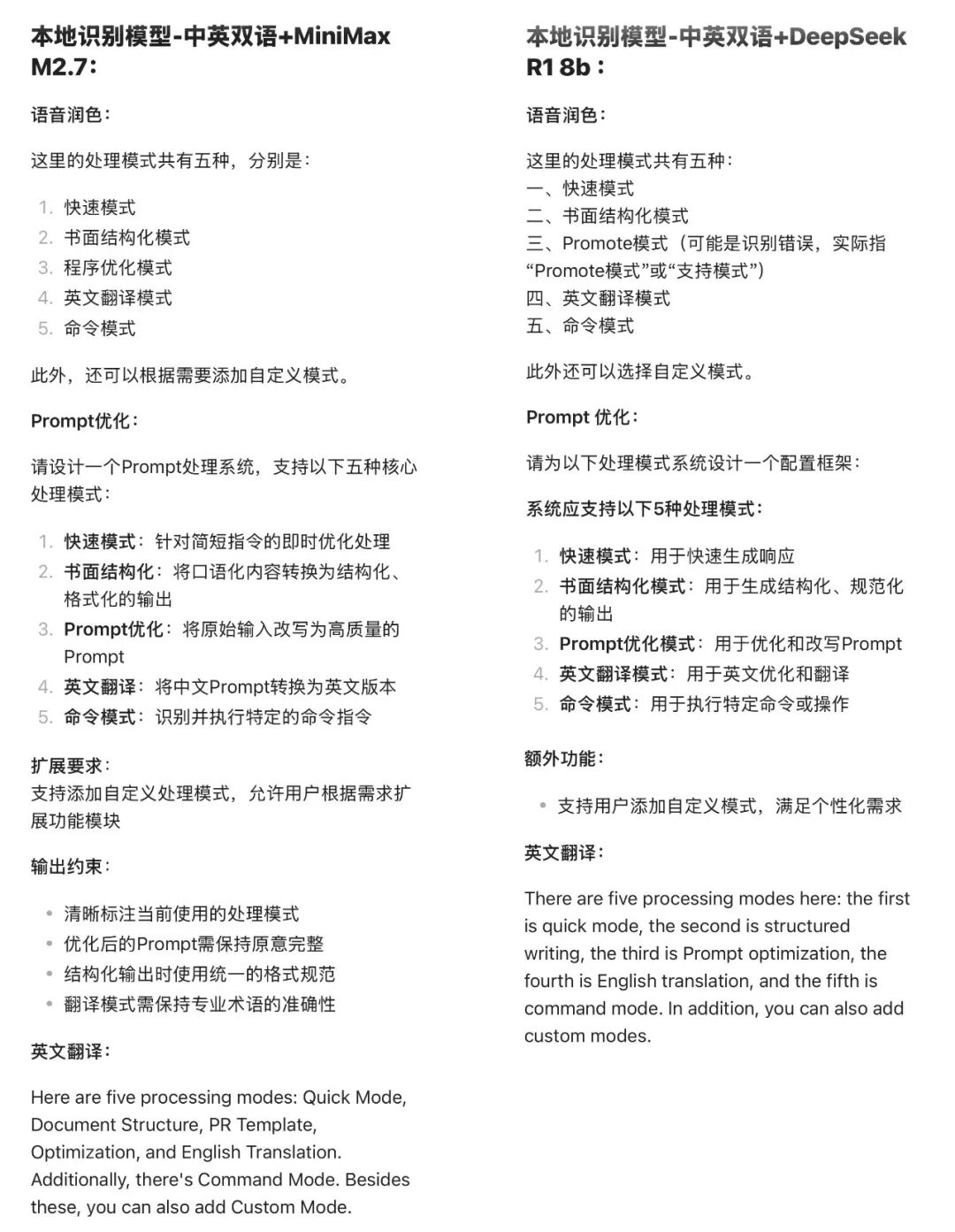
Chinese-English bilingual recognition + cloud MiniMax M2.7
With "balanced (recommended)" selected for local speech recognition, performance was so-so, but after choosing "Chinese-English" bilingual, the output was almost perfect.
Chinese-English bilingual recognition + local Deepseek
Also excellent. One English word was recognized incorrectly, but it could infer that something was wrong and added a note. Compared with MiniMax M2.7, the only issue is that the prompt optimization isn't detailed enough, but it's still usable.
To sum up
If you're also fed up with typing, or don't want to pay for a voice input tool anymore, Type4Me is worth a try.
Its biggest advantages:
- Completely free: no subscription, no monthly fee, truly zero cost.
- Private and secure: all data is processed on your own computer and never sent anywhere.
- Simple and easy: install it and go; speak and the text appears, with almost no learning curve.
- Capable enough: from quick notes to translation and optimization, the common scenarios are covered.
With AI tools getting more expensive, having a local option that's both free and privacy-protecting is genuinely rare. If you're on a Mac, spend a few minutes installing it and trying it out — you might never go back to typing everything by hand.
Tools, after all, are only as good as they are easy to use.
#AITools #Type4Me #VoiceInput #LocalDeployment #YoureDisturbingMyTNT